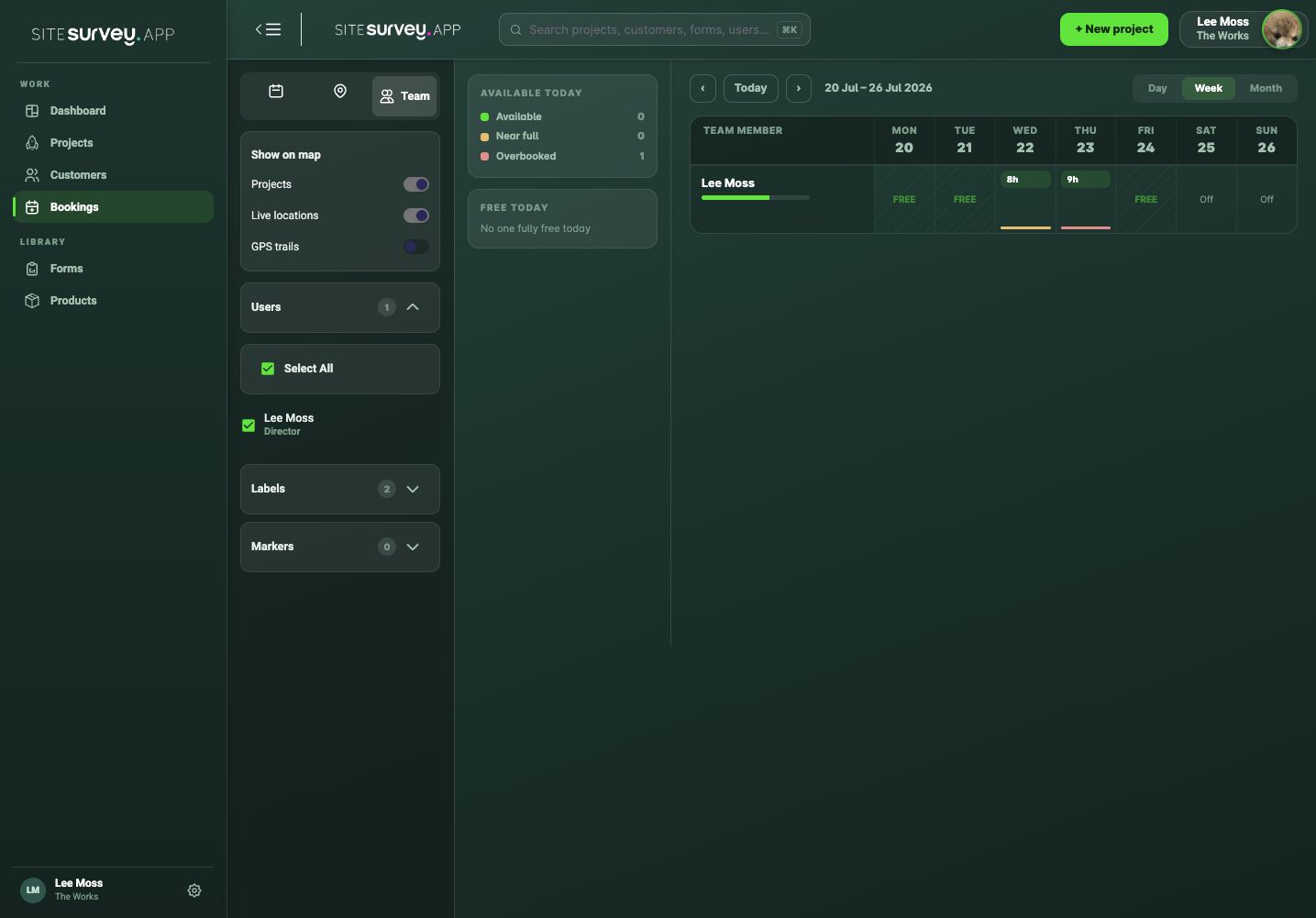
The team view brings everyone’s schedule into one place. Company opening times define the length of a normal working day, allowing SiteSurvey to identify free capacity, nearly full days, clashes and overbooked days.
- 01
Open the team view
Go to Bookings and choose Team from the calendar view selector.
- 02
Confirm company opening times
SiteSurvey uses the opening and closing times in Company Overview to calculate the working capacity for each open day. Closed days are treated as unavailable.
- 03
Choose the time range
Switch between day, week and month depending on whether you are planning a visit or balancing wider capacity.
- 04
Filter the team
Select the users, labels or markers relevant to the work you are planning.
- 05
Review availability
Use the availability indicators to identify free, nearly full and overbooked team members.
- 06
Open or create a booking
Select an existing entry to review it, or create a new booking for an available person and time.
Good to know
- ✓Set opening times before relying on full, nearly full or overbooked indicators.
- ✓Use week view for day-to-day resource planning.
- ✓Check travel time between sites before treating a gap as usable availability.
Was this guide helpful?
Your feedback helps us improve support content.