- 01
Open Company Overview
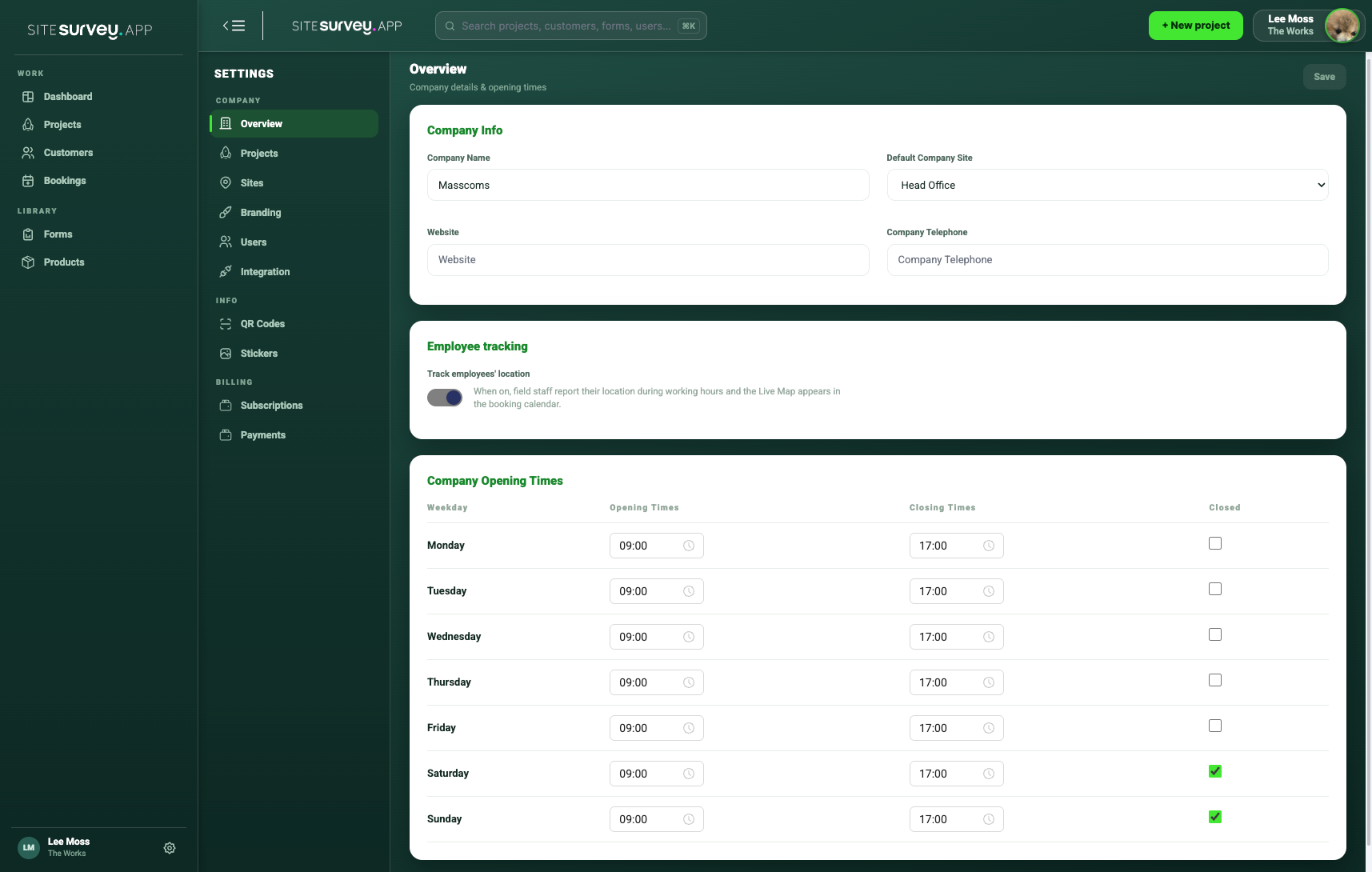
Open Settings and choose Overview under Company. This page contains company information, the employee-tracking switch and Company Opening Times.
- 02
Set each working day
Enter the normal opening and closing time for Monday through Sunday. Mark days when the company does not operate as Closed.
- 03
Understand calendar capacity
SiteSurvey uses the configured hours as the available capacity for a normal day. Booked hours are compared with this window to show free, nearly full and overbooked team members.
- 04
Choose whether to enable tracking
Turn on Track employees’ location only when your organisation intends to use live location and has informed users appropriately.
- 05
Understand the tracking window
When tracking is enabled and device permission is granted, location reporting is limited to the configured company working hours. It does not track outside that window.
- 06
Save and review
Select Save, then check the Team calendar to confirm capacity reflects the working day you configured.
Good to know
- ✓Review opening times whenever working patterns change.
- ✓Use Closed for regular non-working days rather than leaving misleading hours in place.
- ✓Location permission and signal are still required during working hours.
Was this guide helpful?
Your feedback helps us improve support content.