Bookings keep the project, date, time, location and assigned people together. Create the booking from the calendar or directly from the project.
- 01
Open Bookings
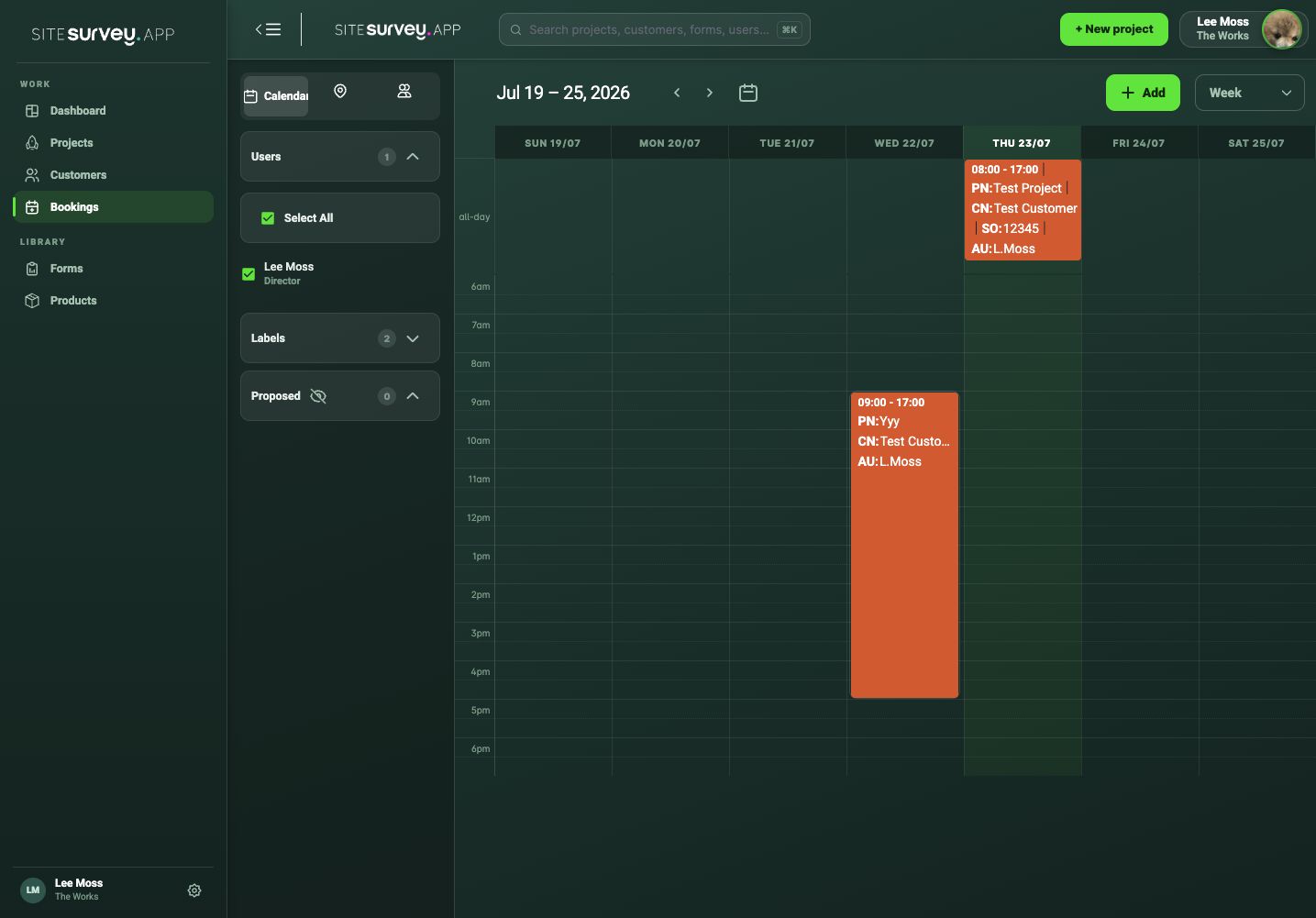
Choose Bookings from the web portal and select the calendar view that contains the required date.
- 02
Select Add booking
Choose the date and start time, then enter the expected end time for the visit.
- 03
Connect the project
Select the customer and project so everyone can open the correct site record from the booking.
- 04
Add the location and invitees
Confirm the site address and choose every team member who needs the booking in their calendar.
- 05
Save and review
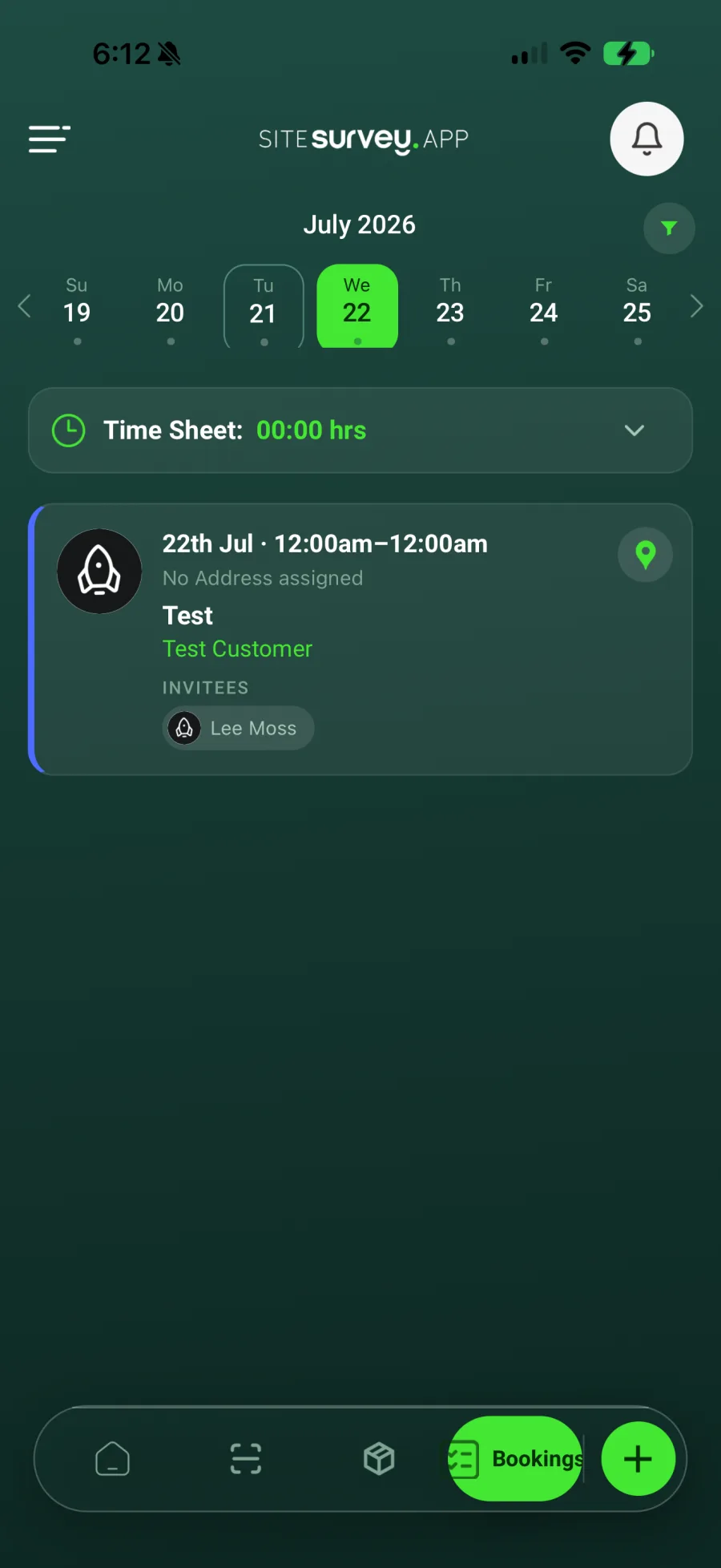
Save the booking, then check it appears on the correct day and against each invited team member. Field users can review the same visit from Bookings in the mobile app.
Good to know
- ✓Use the project site address so mobile users can open directions from the booking.
- ✓Allow enough time for arrival, induction and synchronisation before field work starts.
Was this guide helpful?
Your feedback helps us improve support content.