Timesheet entries connect time spent to the work being delivered. Record them promptly so project and team records remain accurate.
- 01
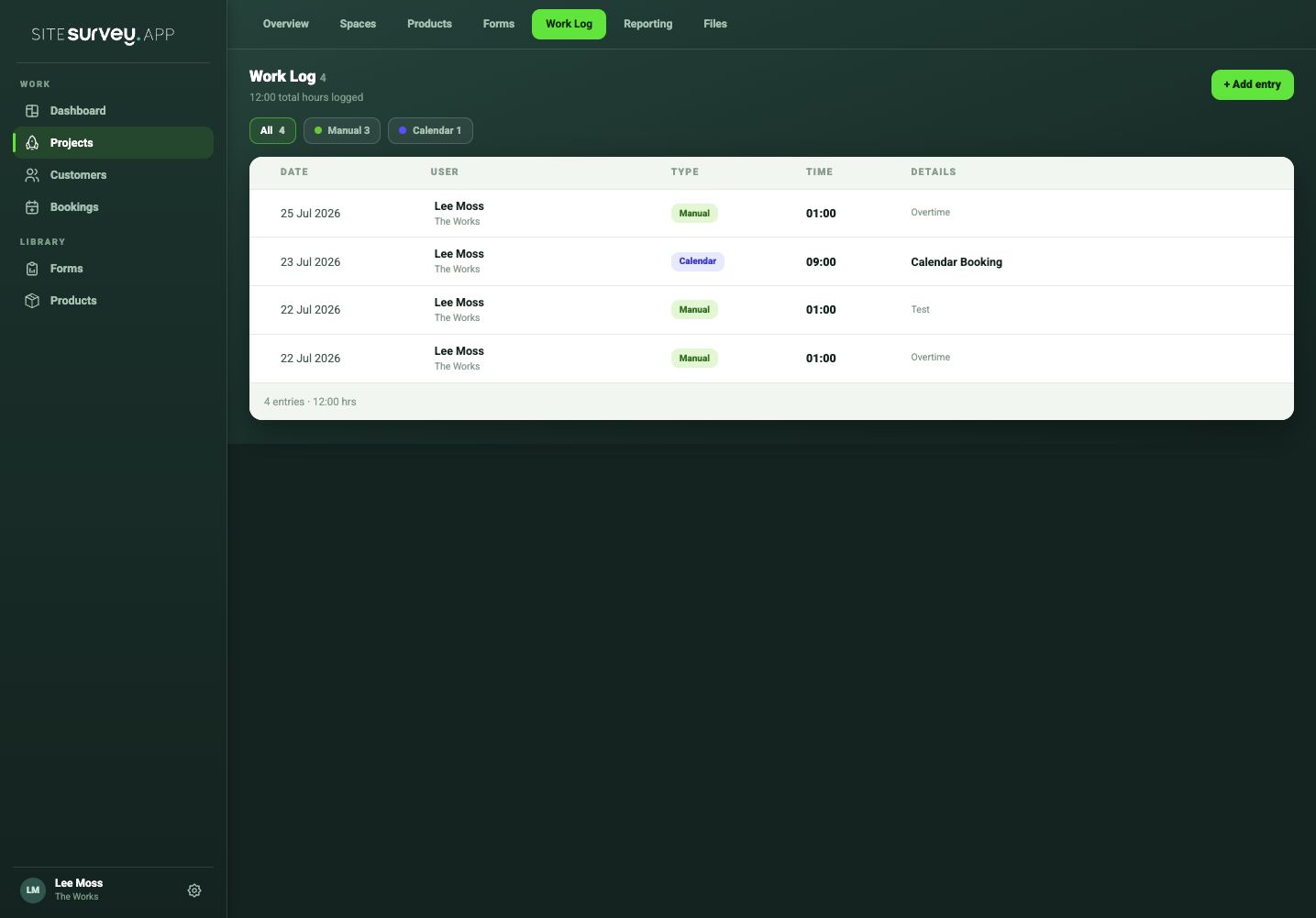
Open the project work log
From the project, open Work Log to review recorded time from manual entries and calendar bookings.
- 02
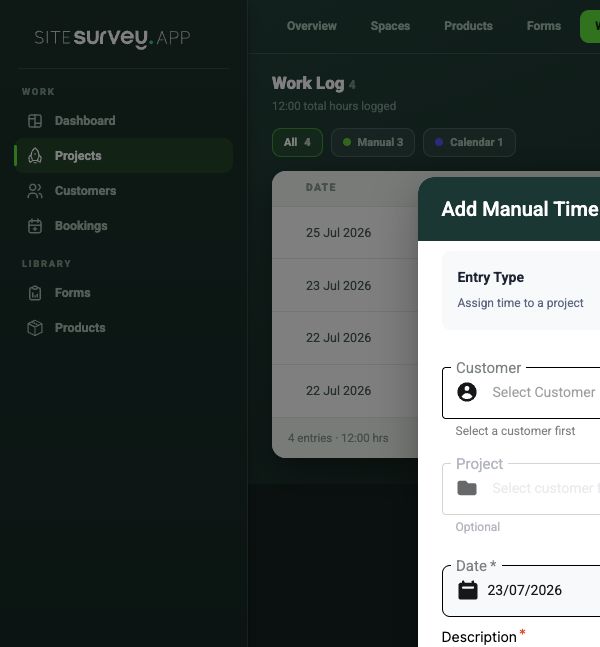
Add an entry
Select Add entry, choose whether the time belongs to a project, and select the customer and project it relates to.
- 03
Enter the time
Add the start and finish time, or the total duration, using the actual hours worked.
- 04
Add useful context
Include an activity or note when it will help a manager understand what the time covered.
- 05
Save and check the total
Save the entry and confirm the day’s total reflects the time you intended to record.
Good to know
- ✓Enter time on the day of the work while the details are clear.
- ✓Use the same project reference as the booking whenever the time relates to a scheduled visit.
Was this guide helpful?
Your feedback helps us improve support content.