- 01
Save the template, then open step 5
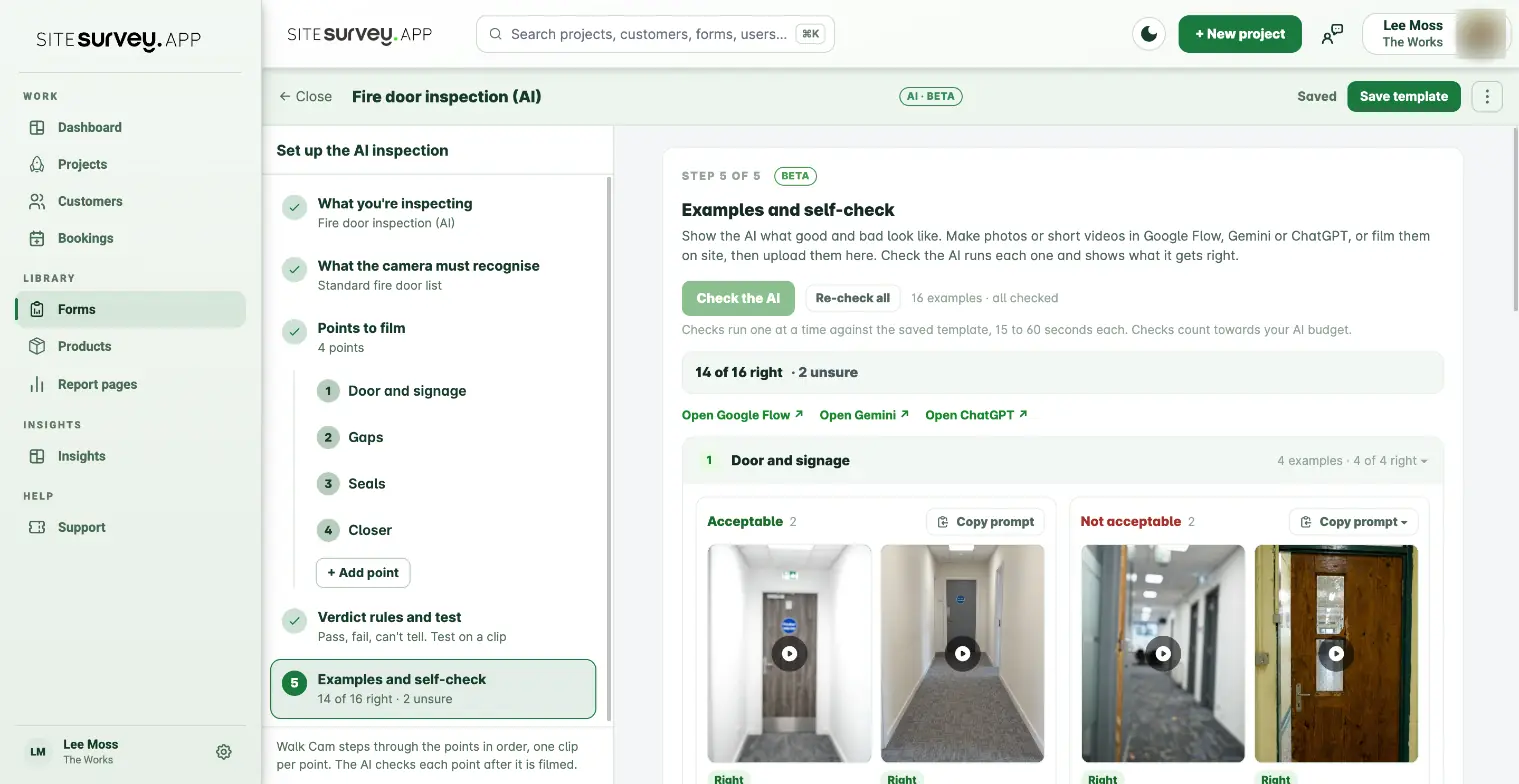
Open the template from Forms, AI Visual Inspector and select Examples and self-check in the steps on the left. Examples belong to a saved template, so a new template asks you to select Create template first. The intro and the links to Google Flow, Gemini and ChatGPT are at the top. Each point of the template has its own card below.
- 02
Know what good examples look like
Give every point at least one Acceptable example (it should pass) and one Not acceptable example for each fault you care about. Each Not acceptable example should show one fault only, so you can see exactly which check the AI catches and which it misses. Film them the way the point's instructions ask: the same framing, distance and light your team will use on site.
- 03
Make an example with Copy prompt
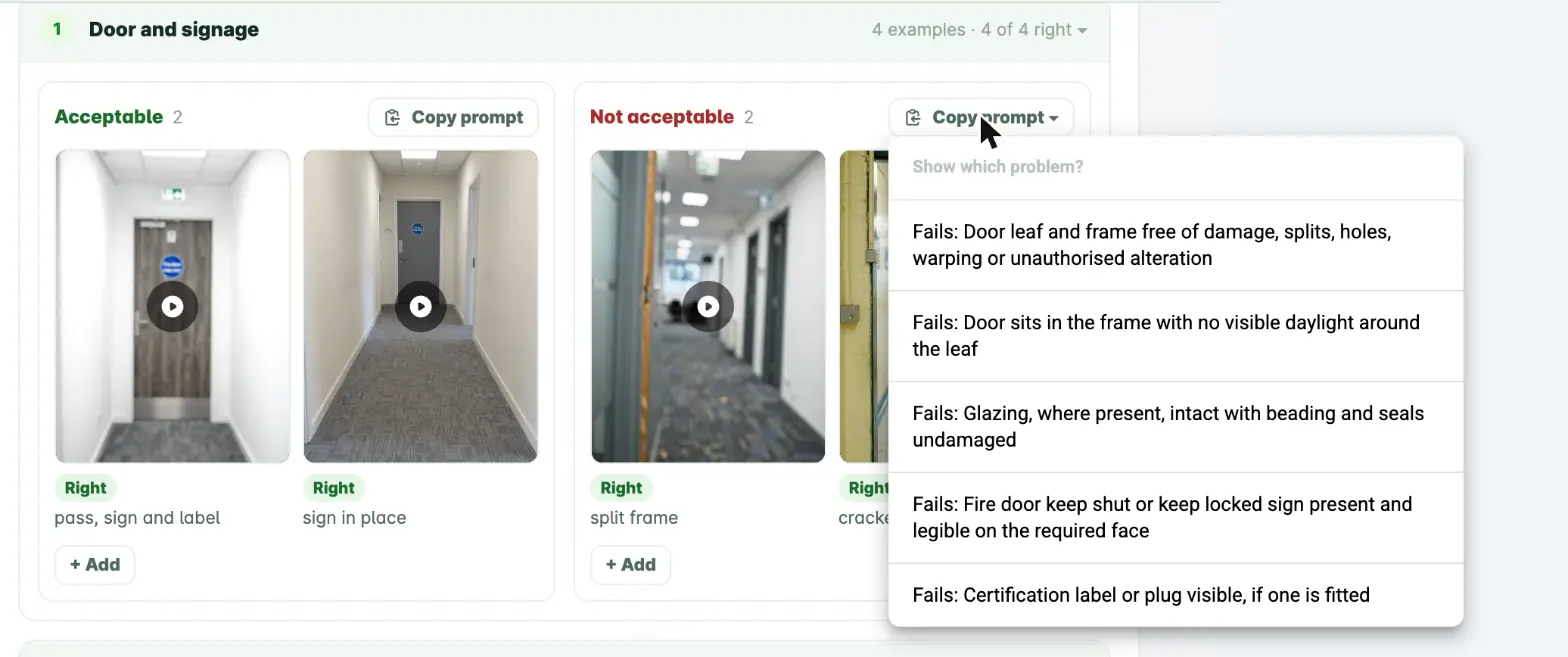
If you have no footage of a fault, make it. Select Copy prompt in the Acceptable or Not acceptable section. For Not acceptable, pick which problem to show: the menu lists each check of the point as Fails: followed by the check. SiteSurvey copies a ready prompt that describes the point, the items that must be in shot, the one fault to show, and a documentary phone-video style. Paste it into Google Flow, Gemini or ChatGPT, generate a photo or an 8 second portrait clip, and download it.
- 04
Upload the example
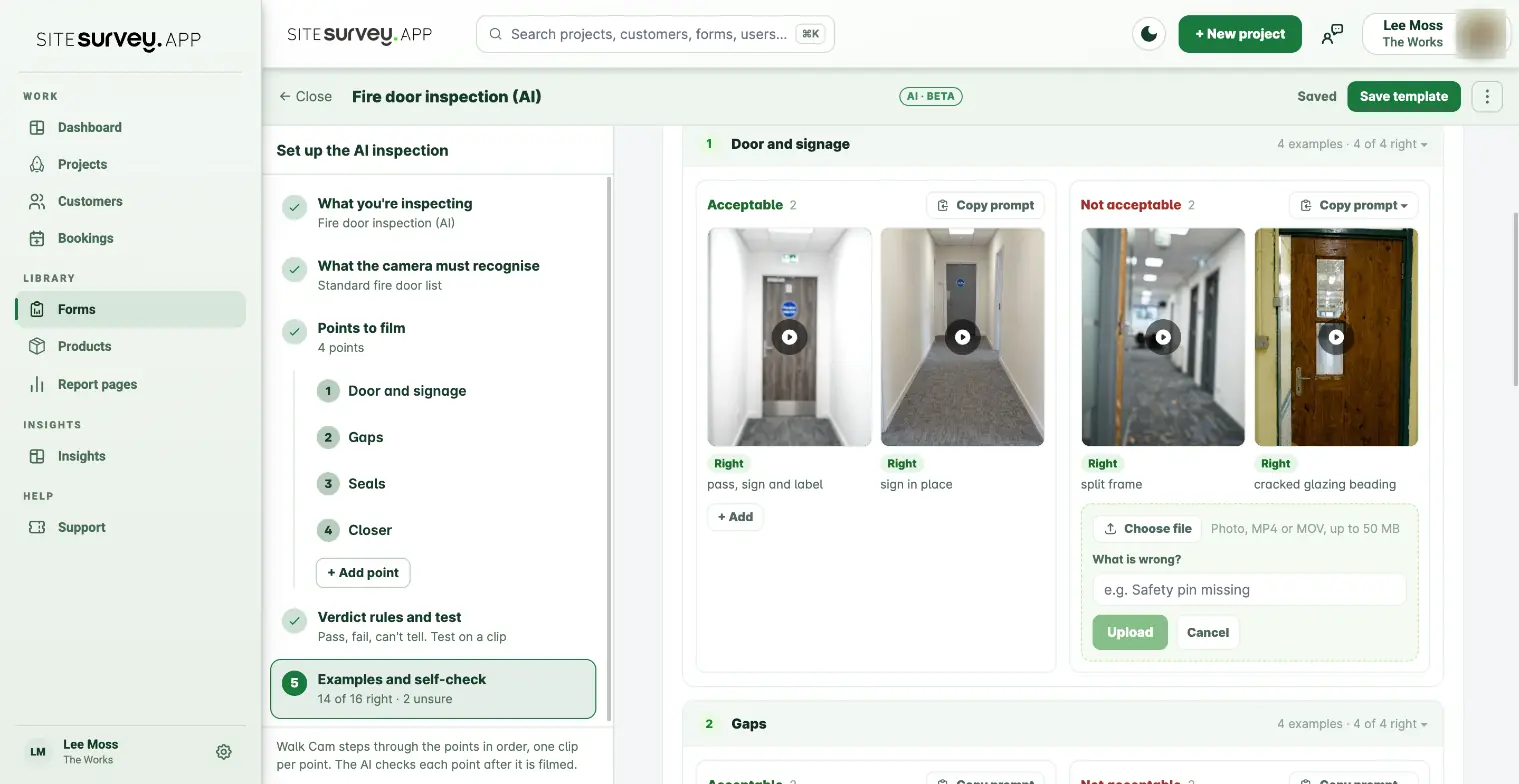
Select + Add in the right section of the point. Choose the photo or clip (JPG, PNG, WebP, MP4 or MOV, up to 50 MB). For a Not acceptable example, say what is wrong in a few words, such as safety pin missing; for an Acceptable one the note is optional. Select Upload. A template can hold up to 40 examples.
- 05
Select Check the AI
Check the AI runs every example that has not been checked yet, one at a time, against the saved template. Each takes 15 to 60 seconds, and the button counts through them. If you have unsaved changes the button reads Save and check the AI and saves the template first. Re-check all runs every example again, which is what you want after you change a check or a rule. Checks count towards your AI budget.
- 06
Read the score
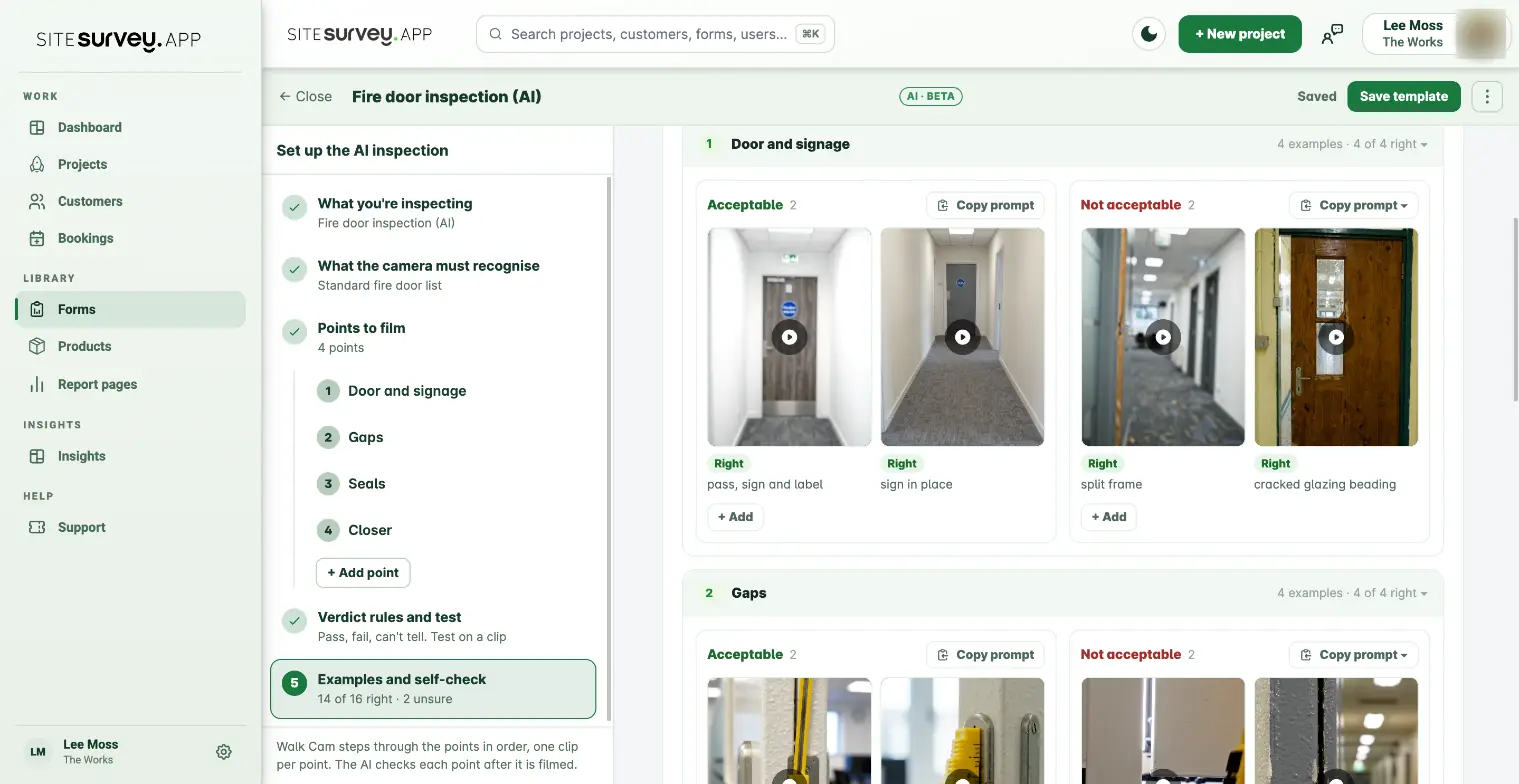
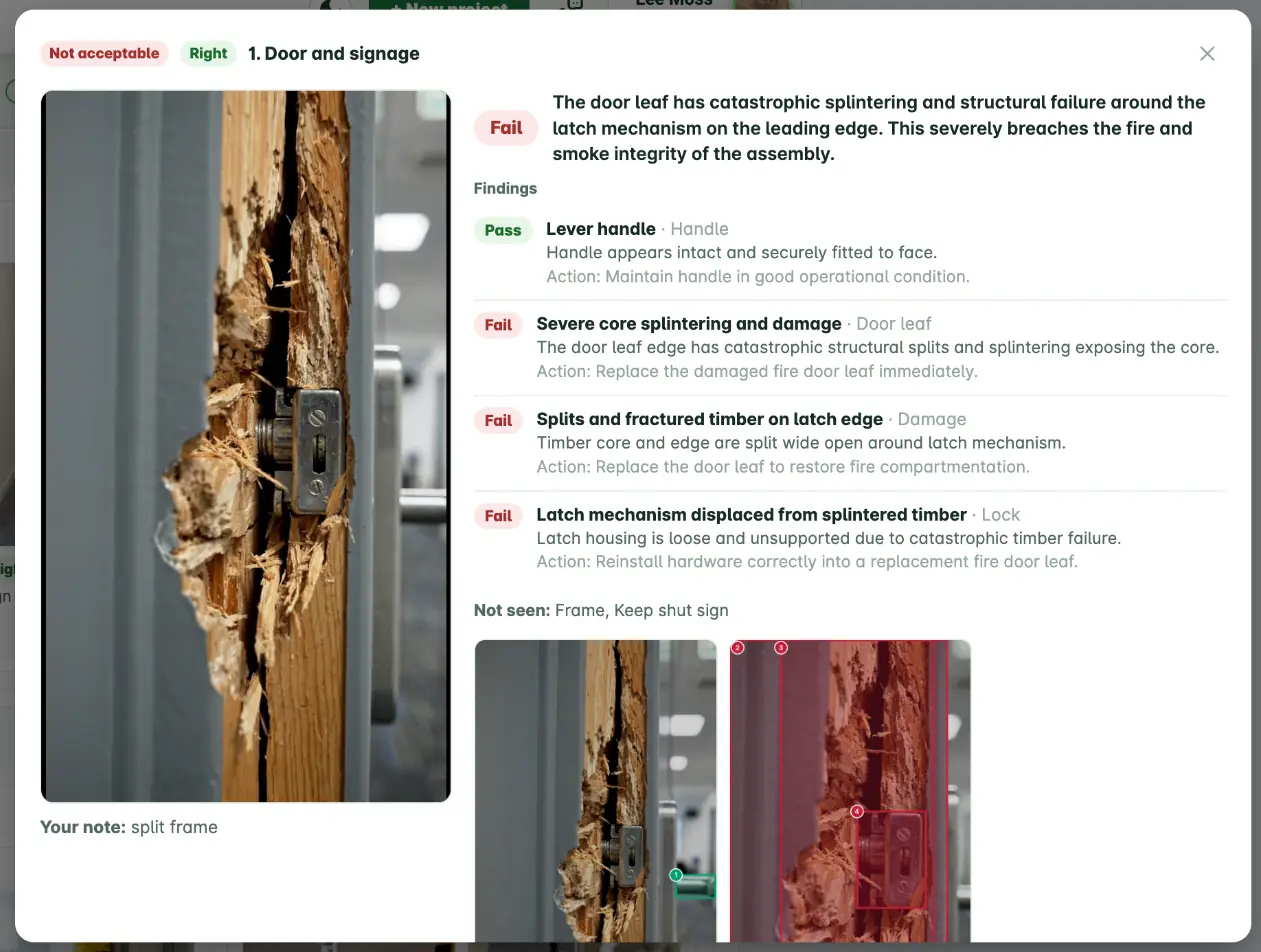
Each example gets an outcome chip. Right means the AI agreed with you. Wrong pass means it passed something you marked Not acceptable: the one to fix first, because on a real job that is a missed defect. Wrong fail means it failed something you marked Acceptable. Unsure means it said it could not tell. The summary at the top adds them up, for example 14 of 16 right, 2 unsure, and each point card shows its own score.
- 07
Open an example to see why
Select any example to see the clip next to the AI's answer: its verdict and summary, every finding with the item it relates to, the reason and the action, the items it did not see, and stills with each finding boxed. Your own note is under the clip. This is how you find out whether the AI failed for the right reason.
- 08
Fix an Unsure
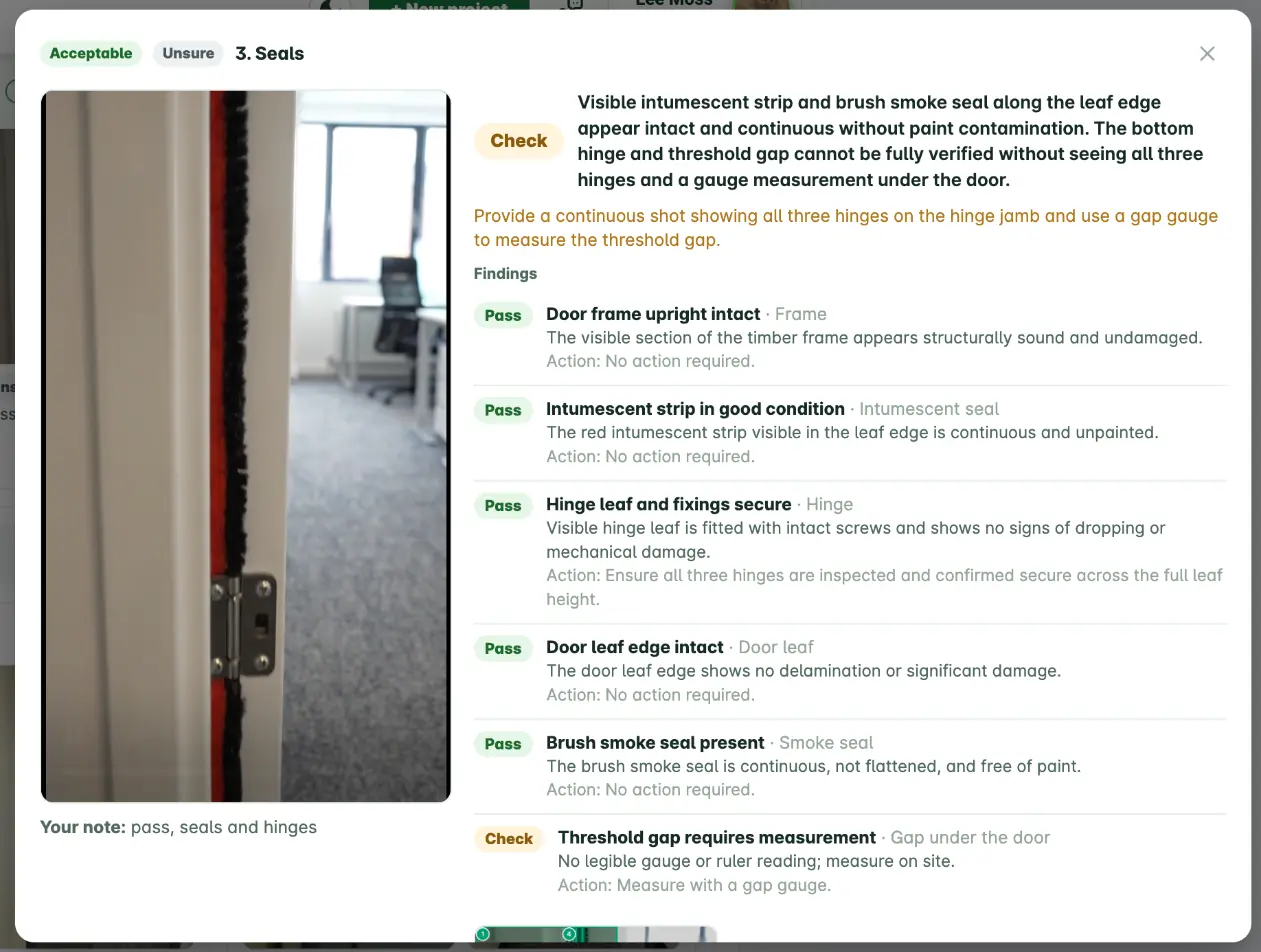
Unsure usually means the example does not show enough, not that the AI is wrong. Read the yellow request under the summary. In this example the seals pass, but the AI asks for all three hinges and a gauge under the door before it will pass the point. Either upload a better example that shows what the point asks for, or change the point's filming instructions and checks so they ask for less in one clip.
- 09
Fix a Wrong pass or Wrong fail
Open the example and compare its findings with your note. For a Wrong pass, make the check for that fault more specific (say what failure looks like, such as any gap, tear or paint on the seal), add the fault to Fail when, or add the item it missed in step 2. For a Wrong fail, look at which check failed: it may be stricter than your standard or need something the clip cannot show, in which case move it to Can't tell when. Change one thing at a time.
- 10
Check again until it is right
Select Re-check all after each change. Aim for no wrong passes and every Not acceptable example failing for the right reason before the template goes to the team. Keep the examples: whenever you edit the template later, Re-check all tells you straight away if the change made anything worse.
Good to know
- ✓Training here means teaching the template. Your examples, checks and rules are what you change; Check the AI shows whether the change worked.
- ✓One fault per Not acceptable example. A clip with three faults tells you nothing about which check works.
- ✓Mix generated examples with real footage from site as soon as you have it. Real light, glare and camera shake are what the AI will see on the day.
- ✓Examples you upload are stored with the template for your team. Clips are sent to Google Gemini for assessment and are not used to train Google's models.
- ✓The AI suggests and the inspector confirms. A perfect score does not remove the need for a competent person on site.
Was this guide helpful?
Your feedback helps us improve support content.