- 01
Open the walk
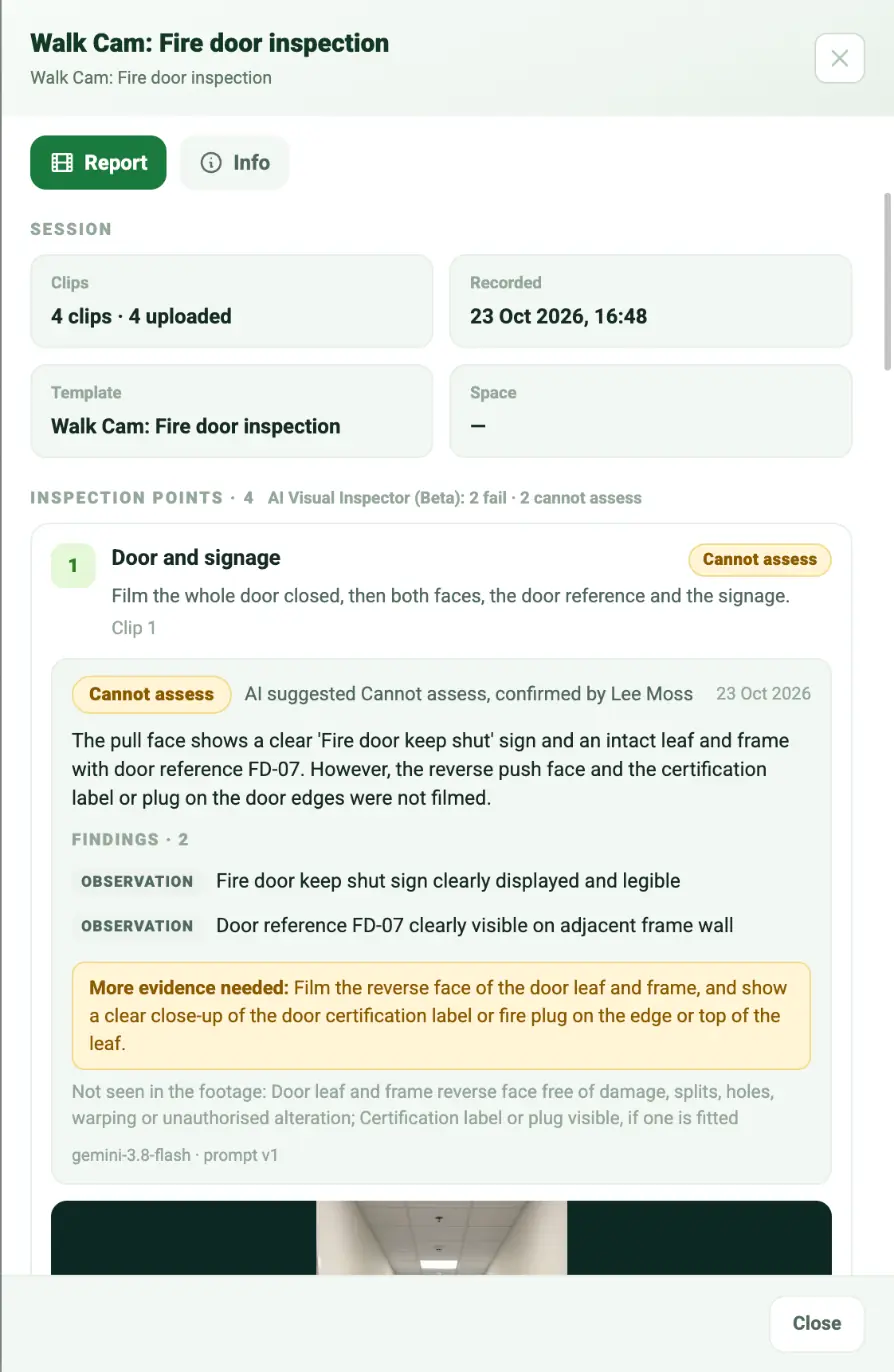
In the web dashboard, open the project, select the Walks tab and select the walk. The drawer opens on the right with the session details and the inspection points.
- 02
Read the totals
Next to Inspection points, a walk checked by the AI shows a one-line count, for example AI Visual Inspector (Beta): 2 fail, 2 cannot assess, or 1 check. Points the inspector has not confirmed yet are counted as unconfirmed.
- 03
Read each point
Every point carries a chip with the confirmed verdict: Pass, Fail, Check or Cannot assess. Check, in amber, comes from AI Visual Inspector templates: the AI saw nothing wrong, but part of the point was not shown well enough to pass it, so it needs a person to look, usually at the More evidence needed request. Below the chip, one line says what happened, for example AI suggested Fail, confirmed by the inspector, or AI suggested Pass, changed to Fail when the inspector disagreed. The date is when it was confirmed. Then comes the AI's short summary of what it saw.
- 04
Check the findings
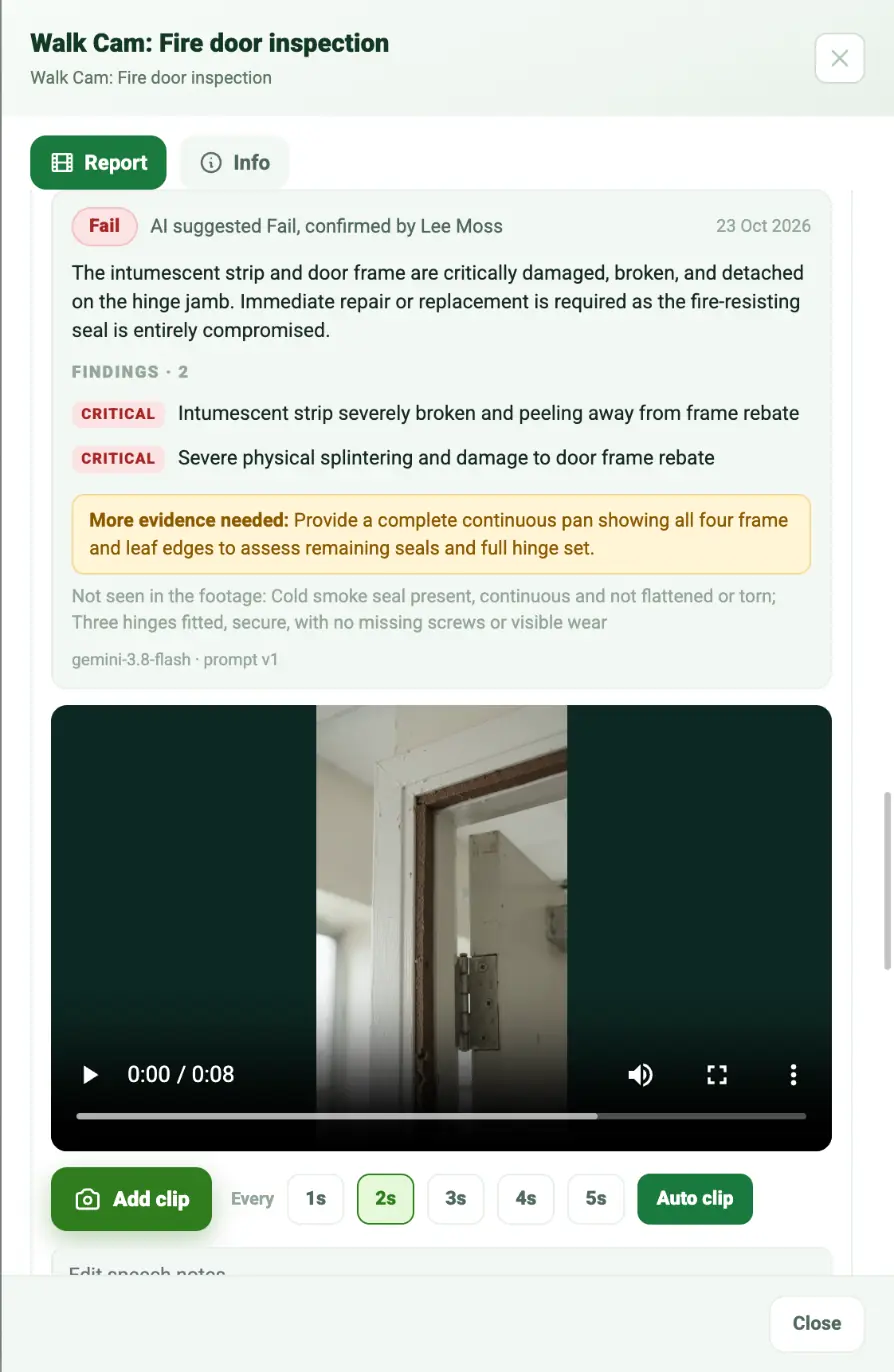
Findings lists what the inspector accepted, each with a severity: critical, major, minor or observation. A pass with no findings says every check for the point was seen and met. Findings the inspector dismissed are hidden; select Show dismissed findings to see them.
- 05
See what was missing
More evidence needed, in yellow, is what the AI asked the inspector to film. Not seen in the footage lists the checks it could not see. Use both to decide whether the point needs a return visit, even when it was confirmed.
- 06
If a point says Unconfirmed
The AI has given its suggestion but the inspector has not accepted, changed or dismissed it yet. The drawer says the point is waiting for the inspector to confirm it on the phone, and reports show it as Unconfirmed. Ask the inspector to open the form or the walk in the app and confirm it.
- 07
If a point says AI reviewing or AI review failed
AI reviewing means the clip is still being checked, usually for a few seconds, or until the phone syncs a walk filmed offline. AI review failed means the AI could not check that clip; the reason is shown under the chip. The inspector can re-record the point, or give their own verdict on the phone.
Good to know
- ✓The dashboard shows verdicts; it does not change them. Every decision is the inspector's, made on the phone.
- ✓The model name and prompt version at the bottom of each point are kept for audit.
- ✓Clips, stills and verdicts stay on the walk, so they can be pulled into a report any time.
Was this guide helpful?
Your feedback helps us improve support content.