Scanning reduces searching and transcription. The label should identify the product record that belongs to the item in front of you.
- 01
Open the scanner
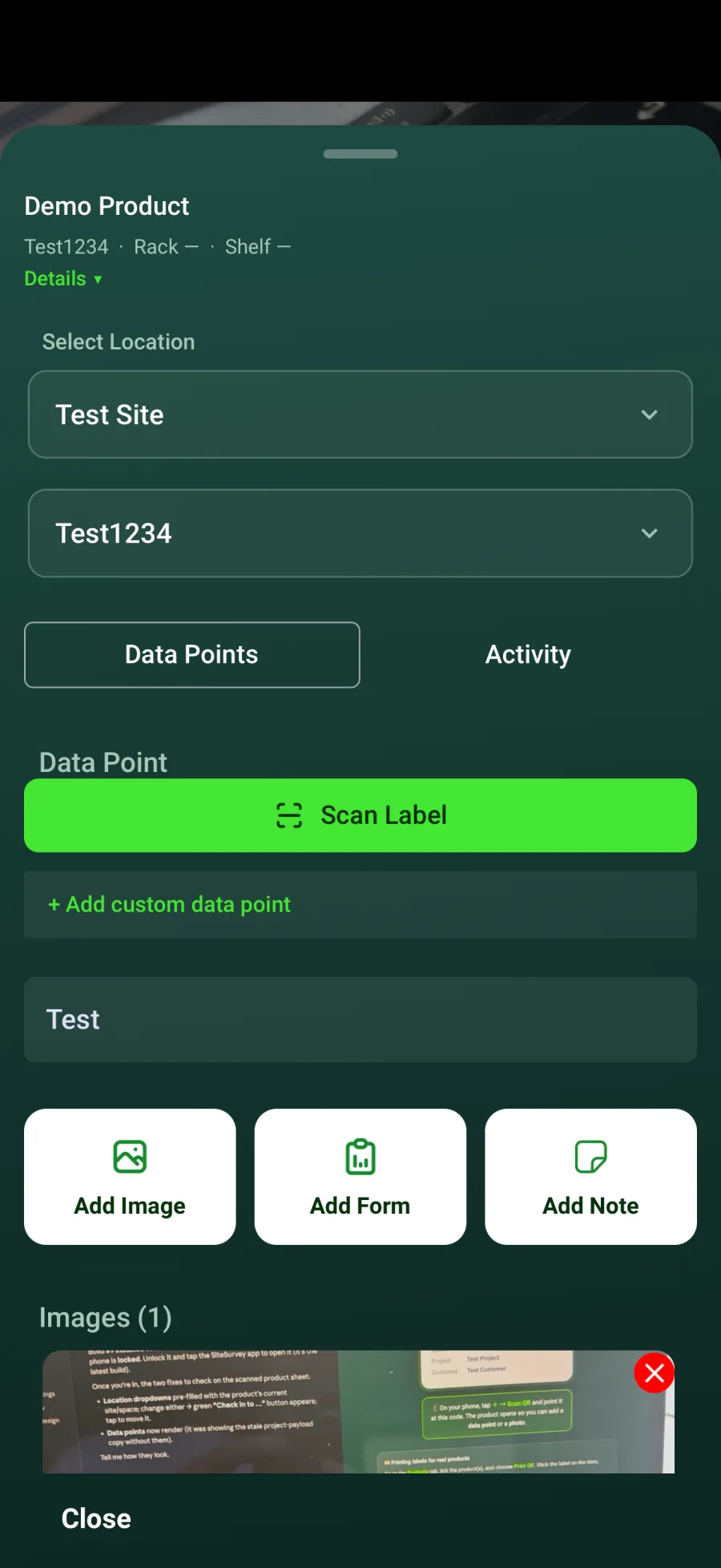
In the mobile app, choose Scan from the main navigation or select Scan Label from the product record.
- 02
Allow camera access
Grant camera permission when prompted so SiteSurvey can read the code.
- 03
Scan the label
Hold the code clearly in the frame until the linked product opens.
- 04
Check the location
Confirm the displayed project and space match the physical item.
- 05
Capture the required data
Add identifiers, photographs, notes or forms and save the updated product record.
Good to know
- ✓Replace damaged labels before they become unreadable.
- ✓Always verify the space after scanning when similar items are installed nearby.
Was this guide helpful?
Your feedback helps us improve support content.