- 01
Open the dashboard
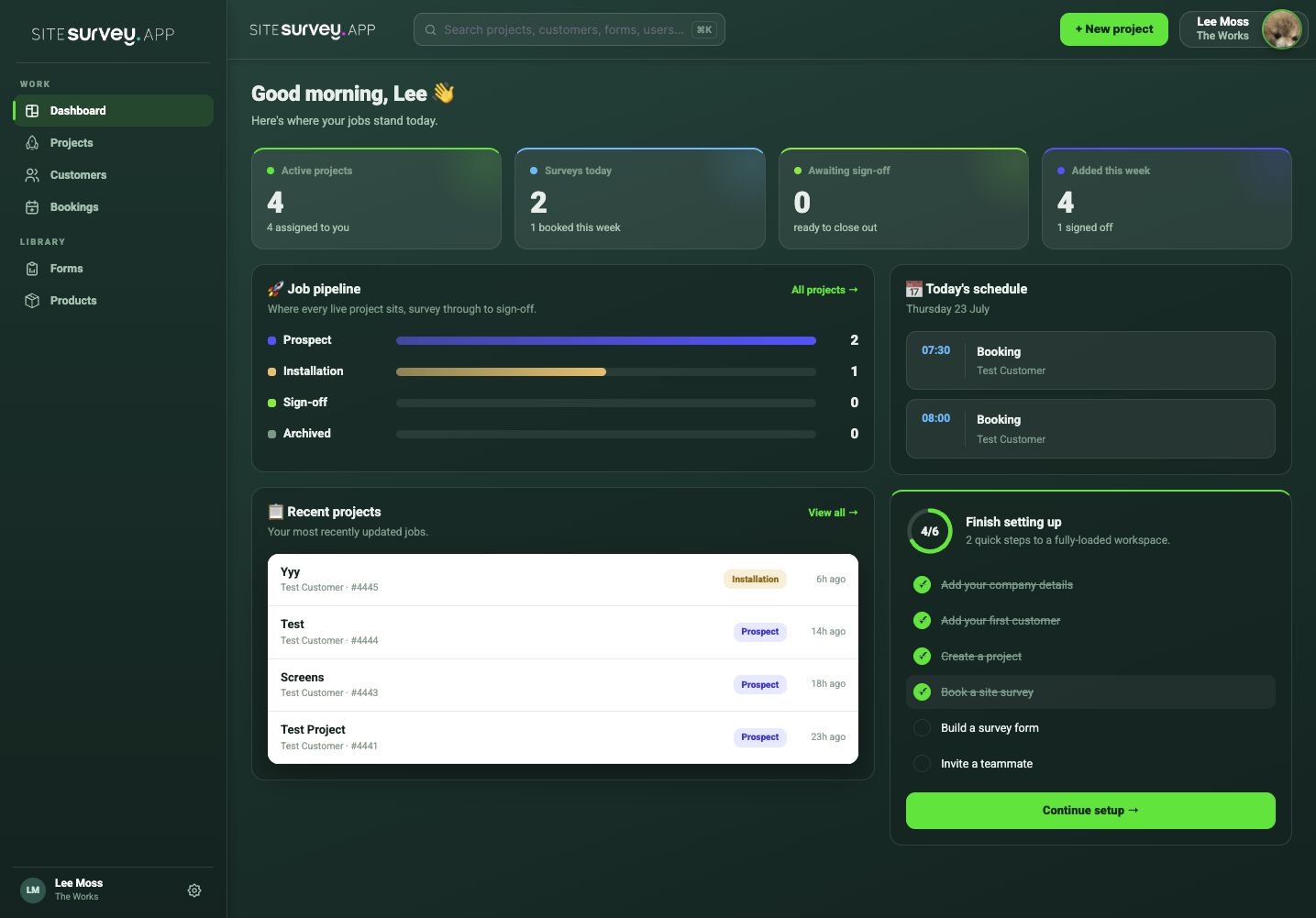
Sign in at admin.sitesurvey.app. The dashboard opens with a summary of active projects, surveys scheduled today, work awaiting sign-off and projects recently added.
- 02
Review the project totals
Use the four summary cards to understand current workload at a glance. They show active projects, surveys happening today, work awaiting sign-off and projects added during the week.
- 03
Check the job pipeline
The pipeline groups live projects by the phases configured for your workspace. A new workspace may begin with Prospect, Installation and Sign Off. Select All projects when you need to open the complete project list.
- 04
Continue recent work
Recent projects shows the jobs updated most recently, their customer, project reference, current stage and when the latest change was made.
- 05
Review today’s schedule
The schedule panel lists today’s bookings and customers. Use Bookings in the main navigation when you need the full calendar or team availability view.
- 06
Use the main navigation
Open Projects, Customers and Bookings under Work. Forms and Products are shared libraries that can be reused across projects and spaces.
Good to know
- ✓Use the global search to find projects, customers, forms and users without leaving the dashboard.
- ✓Keep project phases current so the dashboard and pipeline remain useful to the whole team.
- ✓Workspace administrators can add phases in Settings > Projects.
Was this guide helpful?
Your feedback helps us improve support content.