Smart filter Web dashboard
Ask the projecta question.
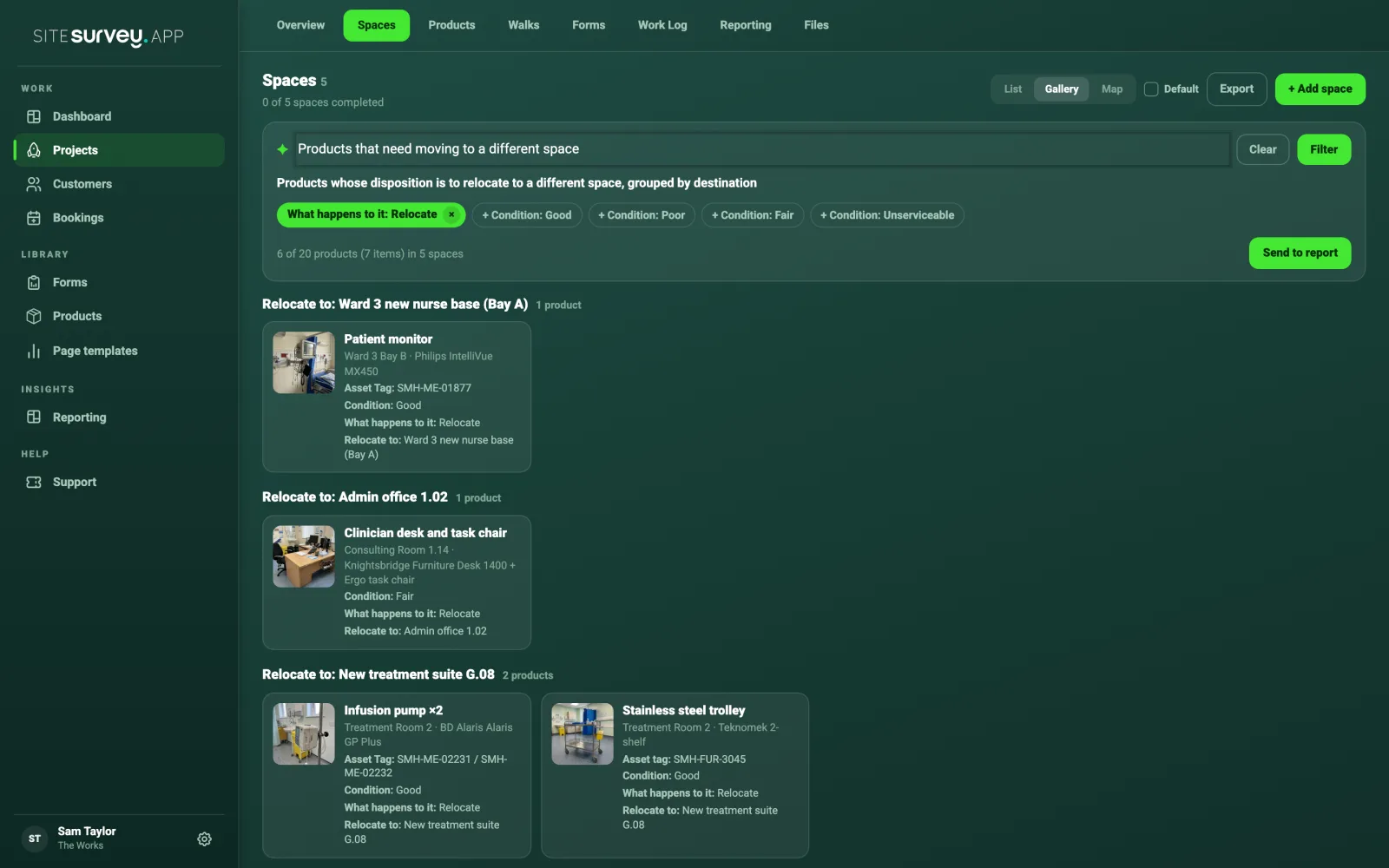
Type what you need to know, such as products that need moving to a different space. SiteSurvey filters every product recorded in the project, shows the exact filter it used, groups the results and adds them to the report in one click.
WhereThe Spaces tab of any project, on the web dashboard.
How does the smart filter work?
Open a project's Spaces tab on the web dashboard. Type a question about its products, such as products that need moving to a different space, or tap a suggested filter built from the project's own answers. SiteSurvey matches the question to the details recorded on the project, shows the filter as chips, and lists only the matching products grouped by space or destination. Send to report adds the result to the project report, ready to export to PDF or Word.
Last updated 25 October 2026.
01 · Try it
Hundreds of products. The ones you need in one tap.
An example hospital project. Tap a suggestion, add or remove chips, then send the result to the report. Or start from one of the jobs below.
Ward 3 Bay B
Consulting Room 1.14
Treatment Room 2
Day Room
Equipment Store
Example hospital project. Nothing is saved.
02 · How it works
Ask, see the exact filter, narrow it down.
A survey records far more than anyone reads top to bottom: condition, what happens to each item, where it is going, asset tags, service dates. The smart filter turns those answers into questions you can ask.
- Plain-English questions. What needs decontaminating before it moves, everything going to WEEE, equipment not serviced since January.
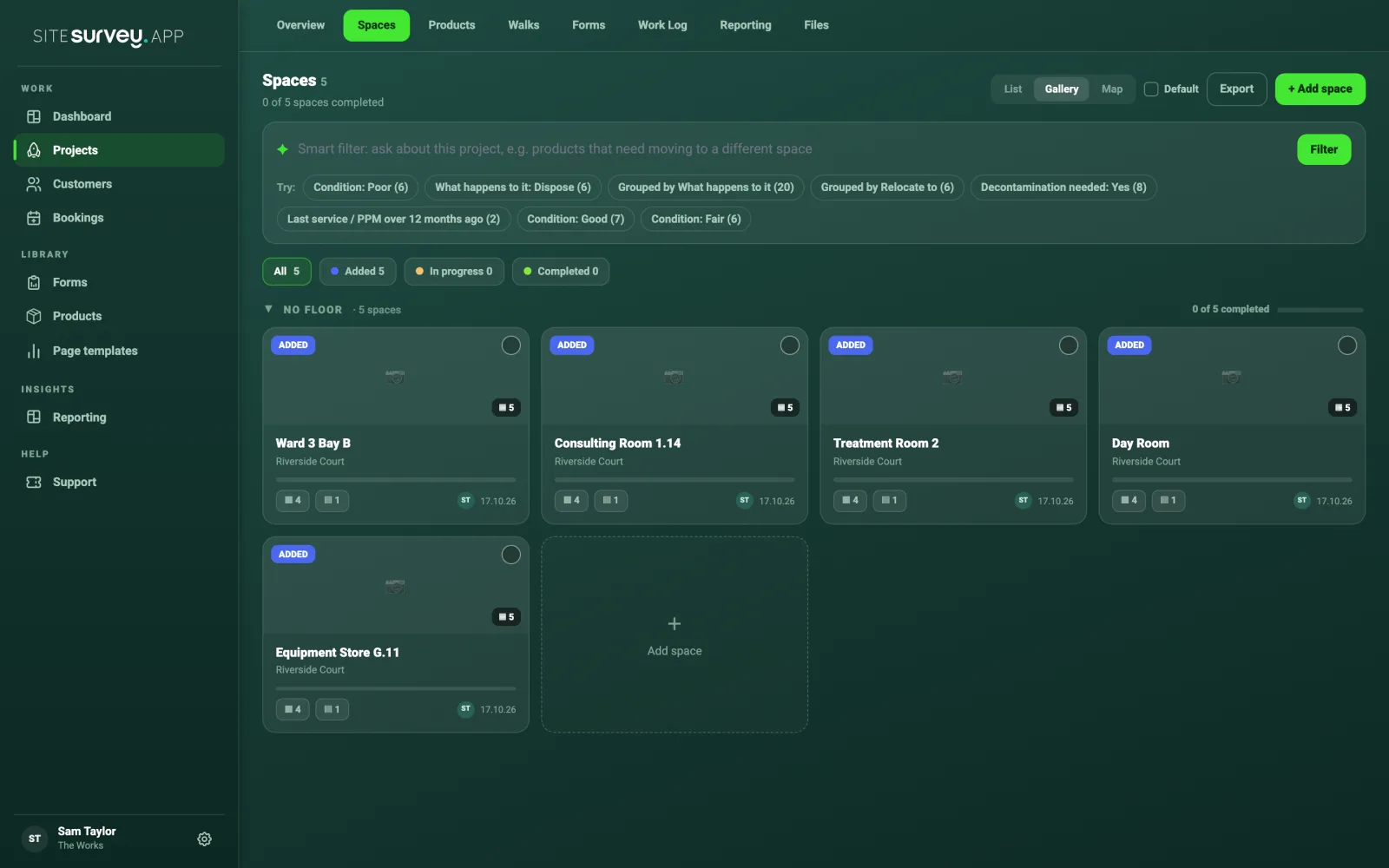
- Suggestions from your data. Ready-made filters built from this project's answers, each with a count. Tap and it runs instantly.
- No black box. The filter it used is shown as chips. Add a condition with +, remove one with ×.
- Results you can act on. Grouped by space, or by destination; each card shows the photo, where it is, make and model. Click to open the product.
03 · Send to report
From a question on the Spaces tab to a page in the report.
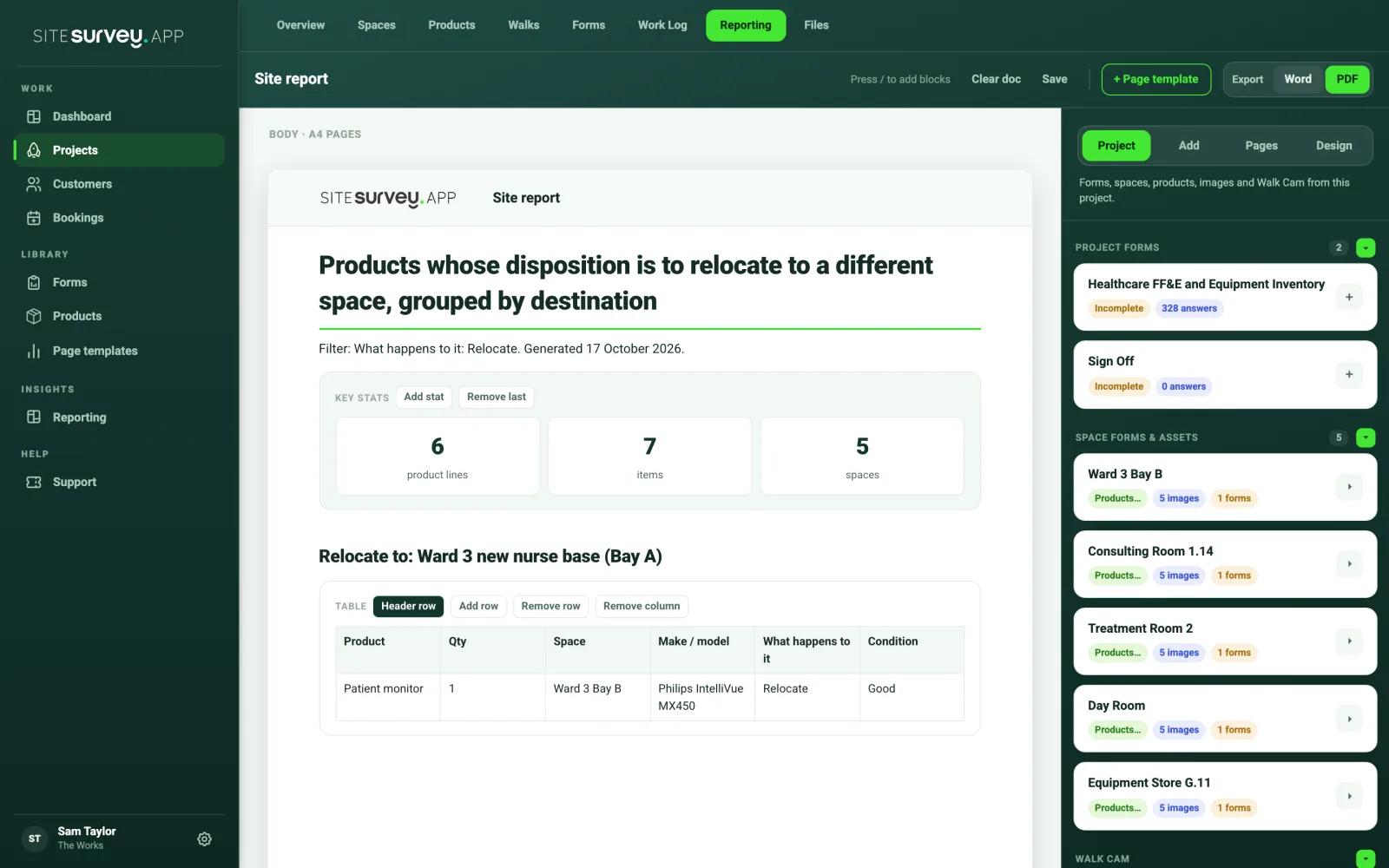
Send to report adds the result to the end of the project report and opens the Reporting tab.
- A heading in the words of your question, and a line recording which filter was used and when.
- Key stats, then a table and photos for every group, with the columns most often recorded.
- Ordinary report content. Edit it, reorder it, export to PDF or Word with the rest.
04 · Forms that feed it
The filter finds what your forms recorded.
Smart filter searches products: their name, category, make, model, quantity and space, plus every detail the form captured. These library forms record assets as products in each room, with condition and what happens to them.
| Asset register | Rooms, then each asset in the room with type, quantity, tag, condition and disposal. |
|---|---|
| IT asset inventory | Rooms, then each device with make, model, serial number and condition. |
| Your own form | Any form that records products in spaces. Build one with the AI form builder or the form builder. |
SiteSurvey Smart Filter, at a glance
- What it is
- A question box on a project's Spaces tab that filters every product recorded in the project.
- Who uses it
- Surveyors, estates and facilities teams, decant and move managers, anyone turning a survey into a schedule.
- What it searches
- Product name, category, make, model, quantity, space and every detail the form captured: condition, what happens to it, relocate to, asset tag, service dates.
- Suggestions
- Built from the project's own answers, with a count beside each. Different projects get different suggestions.
- Output
- Results grouped by space or destination; Send to report adds a heading, filter line, key stats, a table and photos per group to the project report.
- Plan
- The pricing page does not list the smart filter on a specific plan. Plans start at £13 per user per month, with a trial from £1, cancel any time.
What is the smart filter?
The smart filter is a search box on a project's Spaces tab in the web dashboard. Type a question about the project's products in your own words, or tap a suggested filter, and SiteSurvey shows only the matching products, grouped by the space they are in or by where they are going.
What can it search?
Everything recorded against a product in the project: its name, category, manufacturer, model, quantity and space, plus every detail your form captured, such as condition, what happens to it, where it relocates to, asset tag, serial number and last service date. If it was recorded on the project, the filter can find it.
Where do the suggestions come from?
From the project's own answers. SiteSurvey looks at what was recorded and offers the filters that would be useful on this project, with a count beside each, such as Condition: Poor (6) or Grouped by Relocate to (6). A different project gets different suggestions.
How does a typed question become a filter?
SiteSurvey reads the question and matches it to the fields recorded on the project, then shows the exact filter it used as green chips. You can remove a chip, or tap a + chip to add another condition, and the results update straight away.
What does Send to report do?
It adds a new section to the end of the project report and opens the Reporting tab. The section has a heading, a line saying which filter was used and when, a summary of products, items and spaces, then a table and the photos for each group. It is ordinary report content, so you can edit it and export the report to PDF or Word as usual.
Can I build a move schedule with it?
Yes. The Grouped by Relocate to suggestion lists every product with a destination, grouped under each one, which is the move schedule a removals or decant team needs. Send it to the report, or add conditions such as Decontamination needed: Yes first.
Does it work in the mobile app?
The smart filter runs on the web dashboard, where project reports are built. The data it searches is captured in the mobile app or on the web, so anything recorded on site is searchable as soon as it syncs.
Why does a question find nothing?
The filter can only find what was recorded. If your form does not capture condition or what happens to each item, there is nothing to match. Forms that record those details, such as the asset and inventory forms in the library, give the most useful results, and questions work best when they use the words on your form.
See it on your next project